Measure Land Area on Google Maps (Pro Guide)
Learn how to measure land area on Google Maps and calculate acreage accurately. Step-by-step methods, pro tips, and a faster free map tool.
GpsField
Field GIS Specialist · 9 min read
Measure Land Area on Google Maps (Pro Guide)
If you need to measure land area on Google Maps, here’s the short version: on desktop you can draw a closed shape and Google Maps will return area and perimeter. It’s good for a quick acreage check. But if you’re a farmer, survey/GIS user, engineer or land buyer who needs acres, perimeter and export in one place, a dedicated map workspace like GpsField will be faster. When people search “measure land area Google Maps,” “acreage calculator Google Maps,” or “how to calculate acreage from Google Maps,” they usually want a reliable acreage result they can save and share—this guide shows both methods with clear steps and worked examples, including a faster Google Maps acreage calculator alternative.
Quick answer: Can you measure land area in Google Maps?
- Yes. On desktop, right‑click anywhere on the map, choose “Measure distance,” then click around a field boundary. When you close the shape, Google Maps shows area and total distance (perimeter). This is the classic “Google Maps with area measurement” workflow.
- Limitations: It’s basic. Unit control is minimal, export is limited, and there’s no simple way to organize multiple parcels as a project. If you need a “Google Maps with area measurement for farmland” setup that handles multiple fields, units and exports, you’ll run into friction.
- If you need acreage and perimeter together with professional units and one‑click export, use the Land area calculator on the map (no signup): Land area calculator on the map.
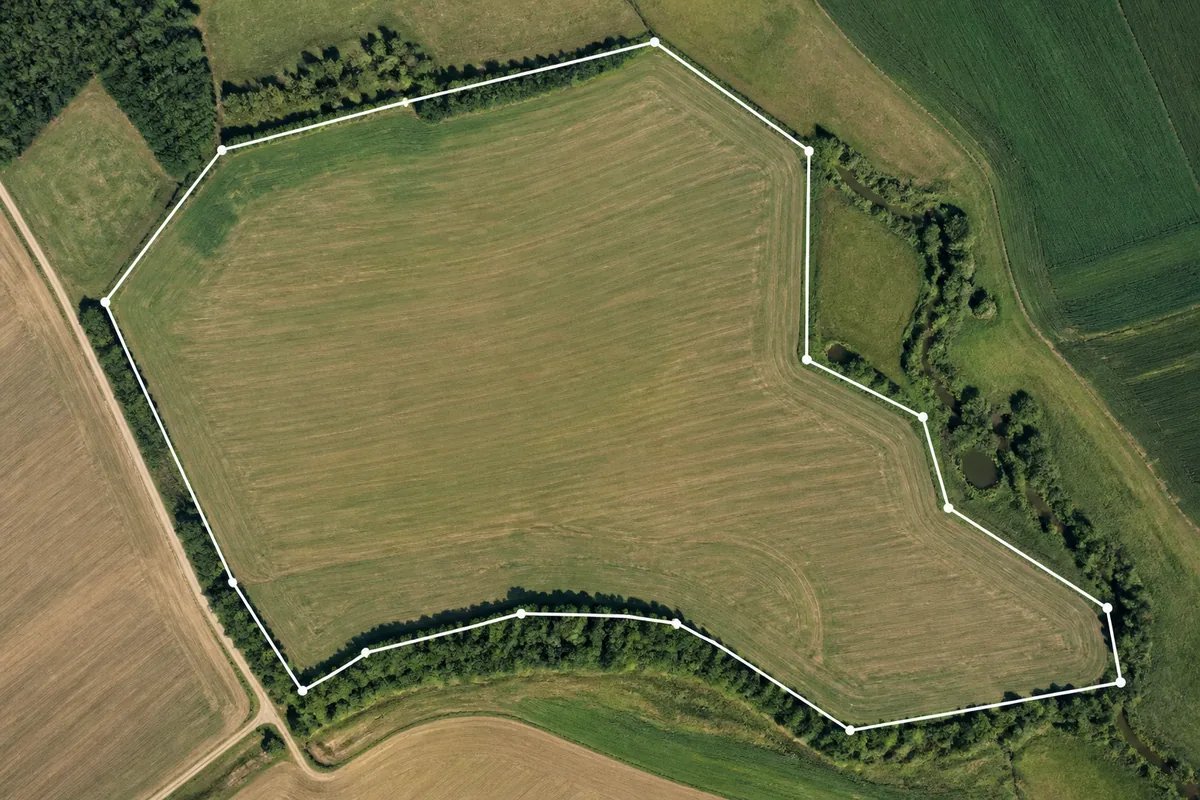 Polygon outlining an irregular field to calculate acreage
Step-by-step: Measure acreage on Google Maps (desktop)
Follow these steps to measure acreage on Google Maps step by step. This works well for farmland, construction lots, and property listings. If you’ve ever searched “how to calculate acreage from Google Maps,” this is the exact process.
- Open Google Maps in a web browser and switch to satellite imagery.
- Tip: Turn on labels if you need road names or parcel landmarks for reference.
- Right‑click near your field boundary and choose “Measure distance.”
- Your cursor becomes a measuring tool.
- Click around the boundary to add vertices.
- Place more points along curves, fence jogs and drainage corners to improve fit.
- Close the shape by clicking the first point again.
- Read the measurements.
- Google Maps shows the total enclosed area (in m² or ft²) and the total distance around the shape (perimeter).
- Convert to acres if needed.
- Acres = m² ÷ 4046.856
- Acres = ft² ÷ 43,560
- Hectares = m² ÷ 10,000
Pro tip: For consistent results, zoom in and place points on the same side of the boundary (e.g., the inside edge of a hedgerow or fence line). This avoids adding or losing a strip around the perimeter.
Worked example (farm): Polygon shows 99,580 m² → 24.61 acres
- Area: 99,580 m² ÷ 4046.856 = 24.61 acres
- Perimeter: 1,547 m × 3.28084 = 5,078 ft
This is a typical result for an irregular row‑crop field with a few drainage corners.
Worked example (construction lot): 68,200 ft² → 1.57 acres
- Area: 68,200 ft² ÷ 43,560 = 1.57 acres
- Perimeter: 3,920 ft = 0.74 mi
Use this for estimating site materials or validating a listing.
Faster workflow: Measure land area with GpsField (free, browser)
If you need acreage, perimeter, live unit switching and export to GIS/CAD, GpsField’s map workspace is built for it. It’s a practical “Google Maps acreage calculator” alternative that keeps acres/hectares, perimeter and export in one place.
How to do it with GpsField
- Open the Land area calculator on the map.
- Search your location or pan/zoom to the parcel. Switch to satellite imagery.
- Click to add vertices around the boundary; the polygon closes automatically.
- Read the live results: area (hectares, acres, m², ft²) and perimeter (metres, feet).
- Save your measurement and organize it into a project folder.
- Export when needed: KML, GeoJSON, Shapefile or DXF.
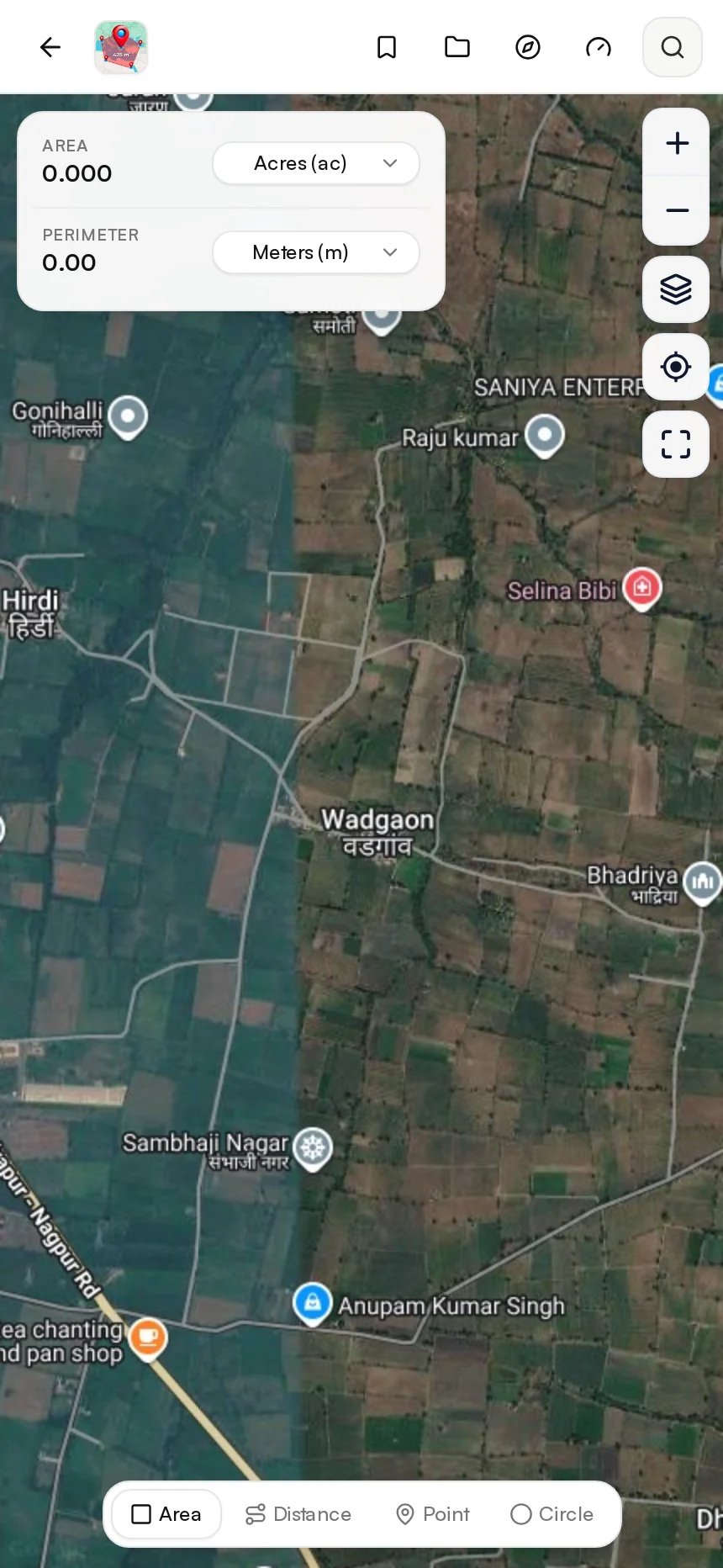 Screenshot of GpsField at https://gpsfield.com/workspace?mode=area
What pros like:
- Immediate acres/hectares without manual conversions.
- Perimeter totals shown alongside area, so you can plan fencing or pipe runs.
- Saved measurements and project groups for keeping fields, lots or tracts together.
- Direct export to formats your team already uses.
Field example (pivot corner): 12.03 hectares = 29.73 acres
- Area: 12.03 ha × 2.47105 = 29.73 acres
- Perimeter: 1,412 m ≈ 4,632 ft
Great for mixed‑shape pivots or pastures that tuck around a ditch or road allowance.
Ranch parcel split
- Draw the outer boundary: 158.2 acres.
- Use the Area splitter (under Area and measurement tools (acreage, perimeter, radius)) to divide off a clean 40‑acre paddock for rotational grazing planning.
Mobile in the field: Walk the boundary and let the map trace
Working on site? Use the GpsField mobile app (Android/iOS) to capture points as you move along the fence line or field edge, then close the polygon on the map. Add more points at corners or curves for a better fit. Use the built‑in compass to keep headings steady on long runs. Save your measurement for exporting later from your device or desktop. This is especially useful because the Google Maps mobile app does not provide area measurement—only distance—so GpsField is the practical acreage calculator in the field.
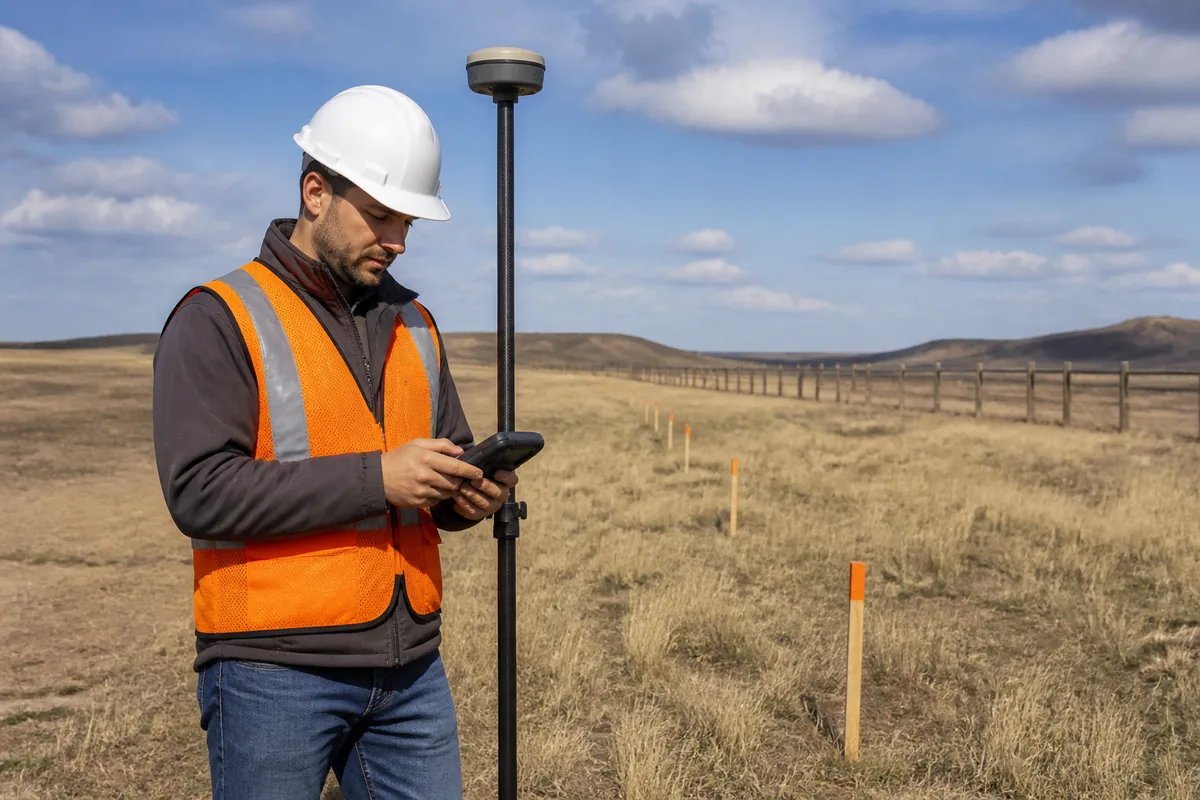 Engineer measuring site perimeter and acreage in the field
When to use Google Earth vs. Google Maps vs. GpsField
- Google Maps: A quick desktop check to find acreage on a parcel. Useful when you need a fast answer and don’t need export or unit control beyond the basics. If you’ve searched “acreage calculator Google” or “acreage calculator Google Maps,” this is the built‑in option—on desktop only.
- Google Earth: A powerful desktop app with ruler/area tools and KML support. If you’re in a KML‑centric workflow and often do “Google Earth measure acreage,” it’s a solid choice.
- GpsField: Browser‑based acreage and perimeter with professional units, saved projects, and direct export to KML/GeoJSON/Shapefile/DXF. Ideal for farmers, survey/GIS users and engineers who need repeatable, shareable measurements. Try the Land area calculator on the map.
Note: If you want Google’s official steps for Maps measurement, see Google’s help page: https://support.google.com/maps/answer/1628031
Accuracy in the real world: What affects your acreage result
- Satellite alignment and imagery date: Older or misaligned imagery can shift visible edges by a few metres. If a fenceline moved or a hedgerow grew, that can affect tracing.
- Point placement: More vertices around curves and tight corners reduce over/under‑shoot along the boundary.
- Terrain and canopy: Tree cover and shadows can hide edges; verify on site when it matters.
- Geodesic math: GpsField computes area and distance on the WGS‑84 ellipsoid (a standard Earth model), which is more appropriate for larger parcels than using a flat plane.
Professional note
For legal boundaries, registrations, property disputes or construction set‑out, hire a licensed land surveyor. Map‑measured acreage is an estimate, not a legal boundary.
Tip: Using GNSS/RTK data
If you capture points with GNSS/RTK in the field, you can move data cleanly by exporting/importing KML or GeoJSON. GpsField supports both, so your measurement stays consistent across apps.
Convert your measurement to acres, hectares and more
- Acres = m² ÷ 4046.856
- Hectares = m² ÷ 10,000
- Acres = ft² ÷ 43,560
Example: 201,300 m² = 20.13 ha = 201,300 ÷ 4046.856 = 49.75 acres.
GpsField shows acres, hectares, m² and ft² live, so you don’t need to run these numbers manually.
Export, share and integrate with GIS/CAD
From the GpsField workspace, export measured polygons as KML, GeoJSON, Shapefile or DXF for collaboration and downstream work.
- Open KML in Google Earth, send GeoJSON/Shapefile to QGIS or ArcGIS, or drop DXF into CAD.
- Need to translate formats from GPS units or CAD? Use the browser‑based GIS file converters (KML, GeoJSON, Shapefile, DXF) to move data between systems without installing software.
Troubleshooting common issues
- Edges don’t match imagery: Zoom in, add more vertices, and fit to a consistent edge (e.g., inside of a hedgerow). If available, check the latest satellite layer.
- Unit confusion: Confirm you’re reading acres vs. ft². In GpsField, switch units directly in the workspace.
- Calculating acreage on Google Maps for irregular fields: Break the shape into sub‑polygons and sum areas, or in GpsField use the Area splitter to divide complex parcels.
- Need a radius buffer (e.g., spray setbacks): In GpsField, draw a circle with the required radius and use it as a visual buffer for planning.
- Need distance along a path (e.g., fence run or pipeline): Switch to Distance and route measurement and trace the line; you’ll get totals in metres and feet.
Try it now: Draw your field and get acres in seconds
- Open the free Land area calculator on the map.
- Drop points around your boundary and read acres/hectares instantly.
- Save, export and share with your team.
Frequently asked questions
Can I measure acreage directly in Google Maps on my phone?
No. The Google Maps mobile app (Android/iOS) can measure distance only—it does not calculate or display area when you close a shape. Area measurement in Google Maps is a desktop feature. If you need a mobile acreage calculator in the field, use the GpsField mobile app or open the GpsField workspace in a browser to draw and get acres/hectares with perimeter and export.
What’s more accurate for area: Google Maps, Google Earth, or a dedicated acreage tool?
Accuracy depends on your point placement and the imagery, not just the app. GpsField computes area and distance geodesically on the WGS‑84 ellipsoid, which is appropriate for larger parcels, and it gives you better unit controls and export options. For legal boundaries or construction set‑out, hire a licensed land surveyor.
How do I export my measured field to KML, Shapefile or DXF?
In GpsField, draw and save your field in the workspace, then export directly to KML, GeoJSON, Shapefile or DXF. If you’re converting between formats from other systems, try the GIS file converters (KML, GeoJSON, Shapefile, DXF).
Why does my acreage change when I add more points around the boundary?
Each new vertex refines the boundary, removing over‑ or under‑shoots along curves and corners. Irregular shapes—tree lines, ditches, meanders—need more points to fit well. Expect the area and perimeter to stabilize as your polygon better matches the true edge.
Ready to get a clean acreage and perimeter you can export? Open the free Land area calculator and draw your boundary now: https://gpsfield.com/workspace?mode=area
Additional resources:
- Area and measurement tools for acreage, perimeter and radius work: https://gpsfield.com/tools?category=area
- GPS and coordinate tools (UTM, MGRS, DMS): https://gpsfield.com/tools?category=gps
Tags & Topics